The AI Job Description Writer generates a full job posting from a short form. Use it to draft a vacancy before you create the job entry itself.
Open the Writer
Go to WP Admin Dashboard → WP ERP → HR → Recruitment → Vacancies, then click Add New.
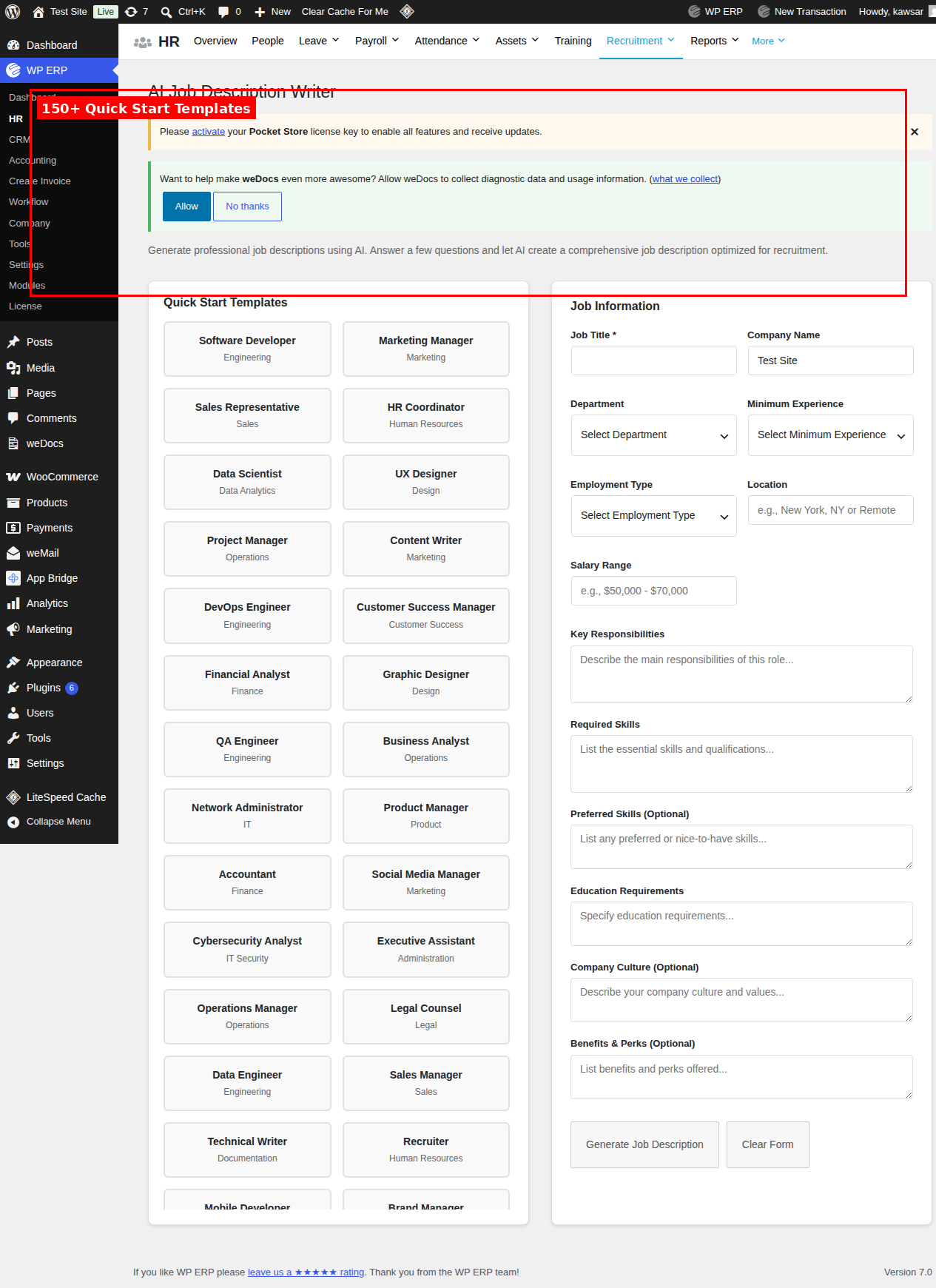
Next to the main editor, click Generate With AI. This opens the writer’s form in a popup.
Pick a Template
The left side of the popup shows over 150 role templates, grouped by category (Engineering, Marketing, Sales, Design, Customer Support, and more).
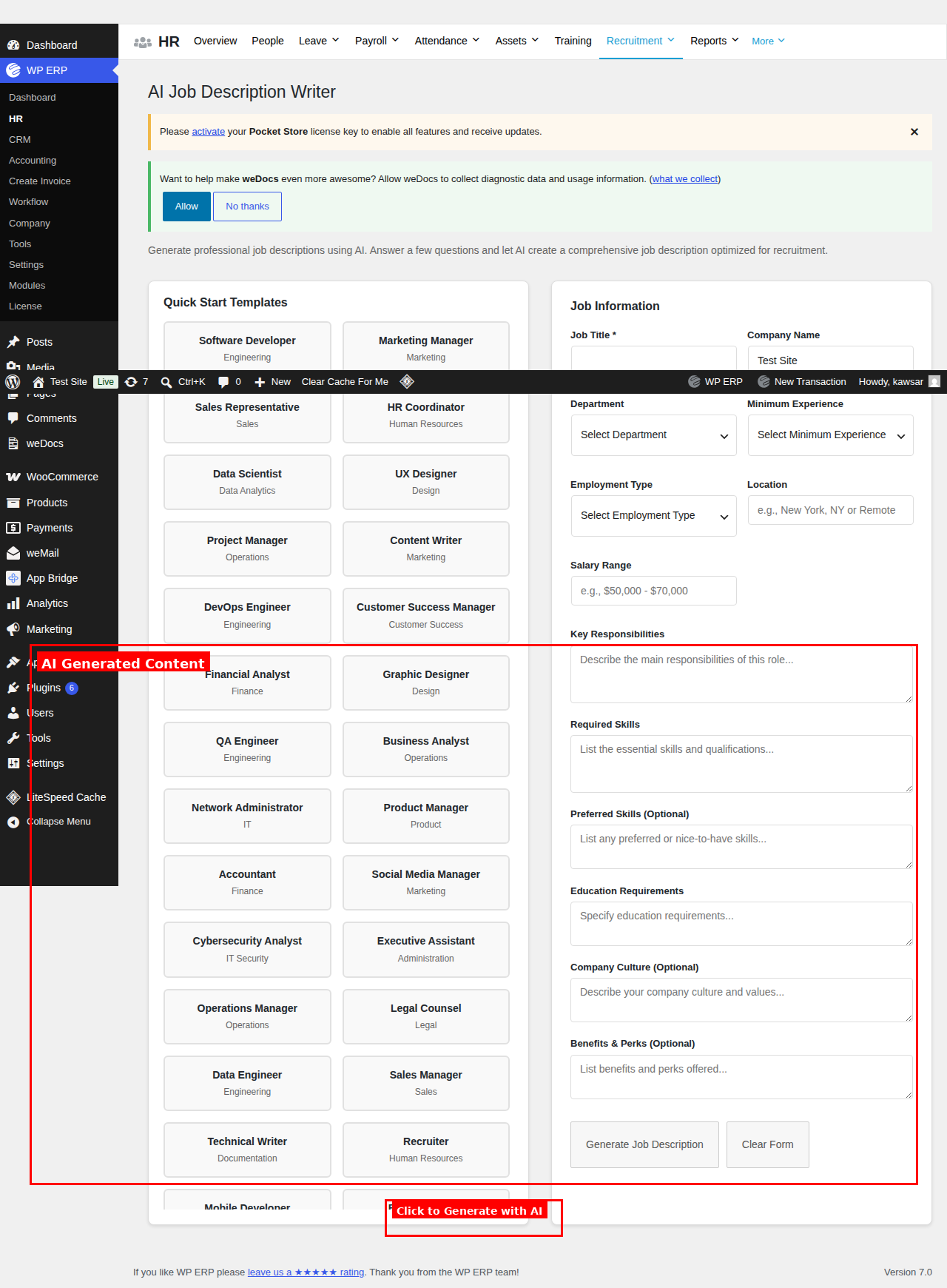
- Clicking a template fills in the form on the right with starting values (title, department, common skills).
- You can edit any field the template fills in.
- If no template matches the role, pick Custom at the top of the list.
Generate the Posting
- Pick a template or choose Custom.
- Fill in Job Title and any other fields you want to include.
- Check any extra context boxes you need and fill in the fields shown.
- Set the Description Length slider.
- Click Generate Job Description.
- Wait a few seconds for the result.
- Read the preview shown in the popup. Change inputs and regenerate if needed.
- Click Create Draft Job.
The posting saves as a draft, and you’re taken to the job editor to review it.
Fill In the Form
- Job Title: Required. The role you’re hiring for.
- Company Name: Defaults to your site’s blog title. You can change it.
- Department: Dropdown of your active HR departments.
- Minimum Experience: Dropdown of year ranges (e.g. “1-3 years”).
- Employment Type: Dropdown (Full Time, Part Time, Contract, etc.).
- Location: Text field, e.g. “Remote” or “Chicago, IL”.
- Salary Range: Text field for the pay range.
- Key Responsibilities: Main duties of the role.
- Required Skills: Comma-separated must-have skills.
- Preferred Skills: Optional. Comma-separated nice-to-have skills.
- Education Requirements: Expected degree or qualification.
- Company Culture: Optional. Your team’s working style or values.
- Benefits & Perks: Optional. Perks such as health insurance or bonuses.
A Description Length slider sets roughly how long the generated posting should be.
Below the fields are checkboxes for extra context sections. Checking one shows its text field. Unchecking it hides the field, and its content is left out of the generated text.
Troubleshooting
- Generate button disabled: The Job Title field is empty. Fill it in.
- Session expired: Close and reopen the popup, then re-enter your details.
- A field is missing from the output: Check that its extra context checkbox was ticked.
- Create Draft Job disabled: Generate a description first so the preview appears.
Still stuck? How can we help?